Frequently Asked Questions
Frequently asked questions about the ALL|GN Accessibility Checker. Select a question to see the answer.
📘 I. Basics
1. What does the name A11|GN mean ?
A11y is a common abbreviation for "accessibility" in the domain, derived from the 11 letters between the letters 'A' and 'y' in the word accessibility. "A11|GN" is a play on the word "align", derived from A11y — with the intended meaning as in,
"... helping align your PDFs to international accessibility standards".Note that in many places on the website, the name AAC is used interchangeably, which stands for A11|GN Accessibility Checker or A11|GN PDF Accessibility Checker.
2. What is the tool used for?
This tool checks PDF documents for accessibility and reports potential accessibility issues based on WCAG and PDF/UA standards with support for selected Matterhorn protocol tests. You can either upload a PDF document or use full PDF document URL and submit it for accessibility checks.
3. Where can I see information about the supported tests?
Please check out the section. Every test is documented there with a detailed description of each test, with the related WCAG 2.x success criteria and PDF/UA principle if any.
4. Who is the tool's intended audience ?
The tool is designed for anyone responsible for creating, publishing, reviewing, or maintaining PDF documents that need to be accessible to everyone, including people with disabilities. Typical users include:
- Content authors and document creators who want to ensure their PDFs meet accessibility best practices before publication.
- Accessibility specialists and auditors who need detailed reports mapped to standards such as PDF/UA and WCAG.
- Government agencies and public sector organizations that must comply with accessibility regulations.
- Universities, schools, and educational institutions publishing course material, research papers, and student resources.
- Corporate communications and marketing teams producing reports, brochures, manuals, and customer-facing documents which need to meet accessibility standards.
- Software developers and QA teams integrating accessibility checks into document generation workflows.
- Consultants and remediation service providers who need fast, repeatable analysis across large numbers of PDFs.
5. Who created this tool?
The tool is developed by who is an expert in PDF Accessibility, who is the primary author of the first open access tool for PDF accessibility completed under the EU sponsored
📏 II. Standards
1. Which accessibility standards does the checker support?
The checker primarily evaluates PDFs against tests derived from WCAG 2.x success criteria and PDF/UA requirements, specifically and with extended Matterhorn 1.1 protocol support wherever mentioned in the test specifications.
2. Why does the checker derive its tests from both WCAG 2.x and PDF/UA ?
The WCAG 2.x support for PDF accessibility is presented as to meet WCAG specifications for PDF documents. It doesn't specify a strict set of standards as PDF/UA does. Instead one derives PDF accessibility tests from a subset of the WCAG 2.x success criteria.
However PDF/UA-1 being for PDF specifications, metadata and structure - provides a solid baseline to implement tests against. A checker which derives its test from a mix of WCAG 2.x success criteria and PDF/UA requirements will be able to provide a larger baseline and richer tests than one which limits itself to either of the standards only.
3. Is the checker fully compliant with WCAG 2.2 and PDF/UA 1.0 ?
No. The checker derives its tests from a subset of WCAG 2.2 success criteria and PDF/UA 1.0 specification. It doesn't implement all the success criteria of WCAG or requirements of PDF/UA 1.0. Hence while it is not fully WCAG 2.2 or PDF/UA 1.0 compliant — it implements a certain baseline of tests which reflect the most important and relevant success criteria and requirements.
4. What is the level of support for Matterhorn protocol in PDF/UA tests ?
is closely associated to PDF/UA-1 standard - it provides the list of ways to fail the PDF/UA-1 standard. Hence many PDF/UA tests supported in the checker need to implement the checkpoint(s) as mentioned in the Matterhorn protocol document. These are clearly mentioned in the for each test.
🔐 III. Signup and Login
1. Can I sign up using my email address ?
Yes, you can. Go to the
2. I signed up but didn't get any activation email!
Please check your Spam folder. The email will be from no-reply@a11ign.io with the title "Activate your A11|GN Accessibility Checker account". Search for the email. If you are still unable to find it, with details.
NOTE: If you find it in the Spam folder, kindly mark it as Not Spam.
3. I don't want to sign-up. Can I sign in another way ?
Yes! If you have a Google or Github user account, you can sign in using these accounts by using OAuth2. Go to the page for this.
4. Can I sign-in using my Facebook account ?
Right now we are supporting only Google and Github as OAuth2 providers. Once the adoption increases, other OAuth2 providers will be added. Currently you can sign-in only using accounts from these providers.
4. I forgot my password. How can I reset it ?
Go to the and click on the link.
5. I clicked on my activation link but it says the link has expired. How can I activate my login ?
Go to the and click on the link that says . Enter your email address to get a fresh activation link.
📊 IV. Usage and Results
1. What does the accessibility score indicate ?
The accessibility score is calculated as a percentage ratio of the number of tests passed to the sum total of failed and passed tests. It is an approximate metric for how well your PDF performs in accessibility.
If,
			p = { number of passed tests }
			f = { number of failed tests }

			score = 100.0 * p / (p + f)
For example if out of 10 applied tests, 1 fail, 4 pass, 3 are warnings and rest is N.A, the accessibility score is 80. Please note that the scoring is done separately for WCAG and PDF/UA.
2. What is the drop-down menu on the right of score for ?
The two broad types of tests are WCAG and PDF/UA based on the two PDF accessibility standards. Whenever a document is submitted, both checks are performed.
By default the results presented belong to the WCAG checks.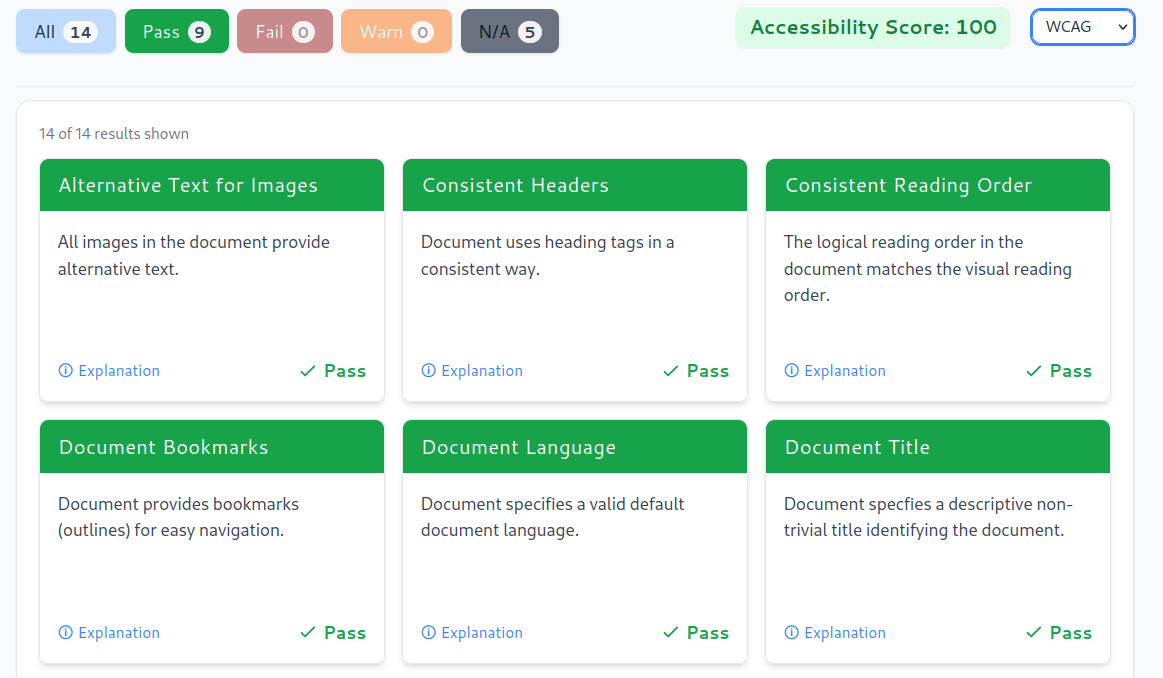
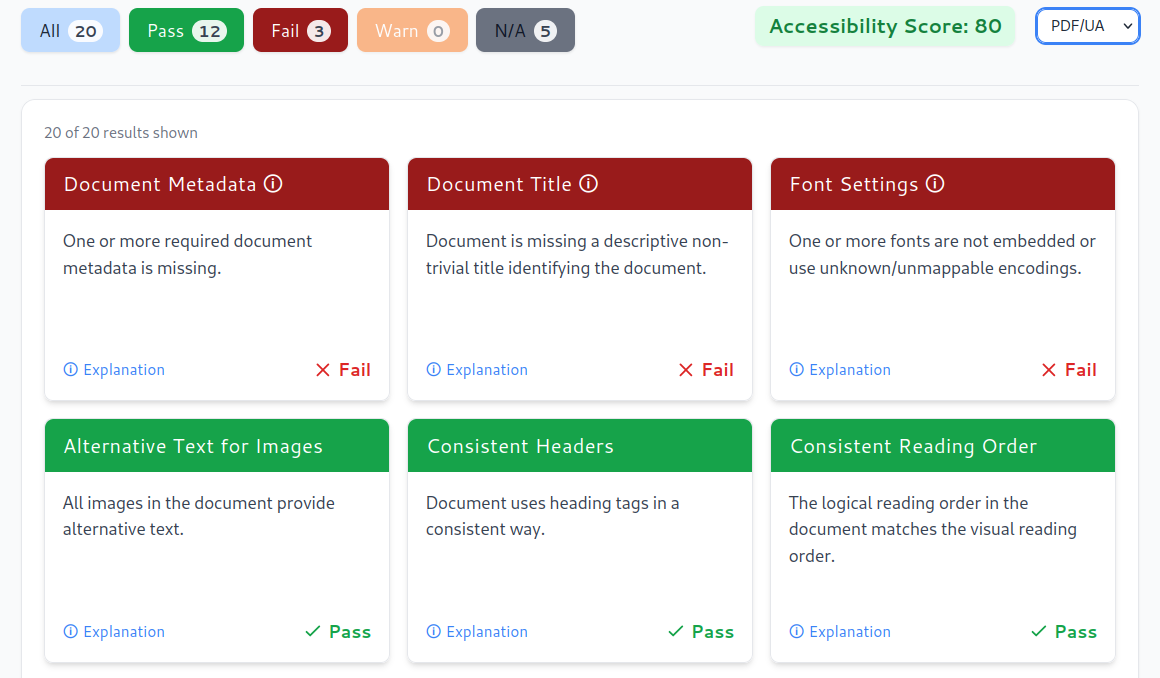
You can use the toggle drop-down on the top-right of the results to switch between WCAG and PDF/UA check results. Note that some tests belong to both WCAG and PDF/UA so appear in both results.
3. What are the multi-colored buttons on the top left of the results for ?
 These are "filters" which aids easy selection of test results. There are five filters namely,
- All — Show all results.
- Pass — Show only test results that passed.
- Fail — Show only test results that failed.
- Warn — Show only test results that raised a warning.
- N/A — Show only tests which were not applicable.
Inside each filter bubble, the count of matching tests are also shown. If a count for a specific filter is zero, that filter is disabled. For example, in the above image, "Warn" is disabled.
As filters are selected, the applicable test results count changes accordingly.

4. What are the numbers appearing in circles in some result cards ?
There are many tests which may produce multiple results — for example, the test for alternative text for images, test for consistent reading order, font settings test etc.
When the checker detects multiple results for the same test, it is indicated as a number inside a circle in the title of the result card — and a tooltip explains the count.
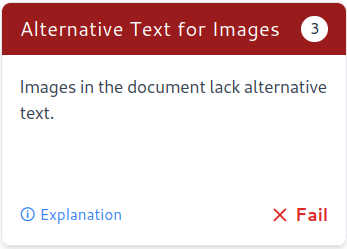
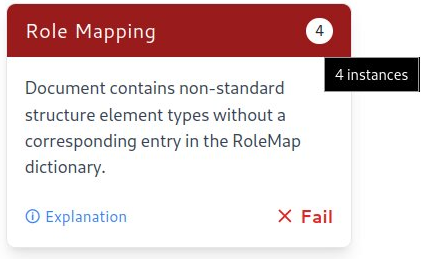
Note that for purposes of score calculation, multiple occurences of failures for a test are not considered separately — it is counted as a single failure.
5. What does the ⓘ next to some cards indicate ?
This indicates that there is more information for the specific test which you can find out by clicking on the card.
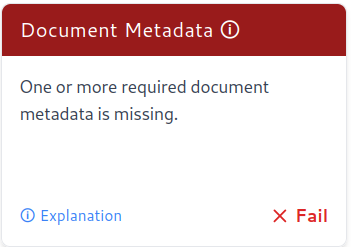
When you click on the card, it flips and reveals the additional information with the card title changing to
<Test Name> — info.
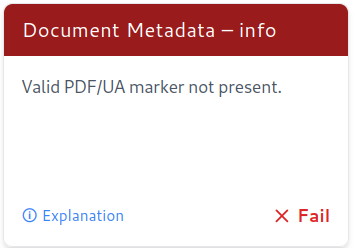
Clicking the card again returns it to its original state.
6. How to find explanation for a test from the results page ?
The Explanation link on each result card opens up the test definition for the given test in a new browser tab or window. If you want more information for a given test than what is provided, feel free to .
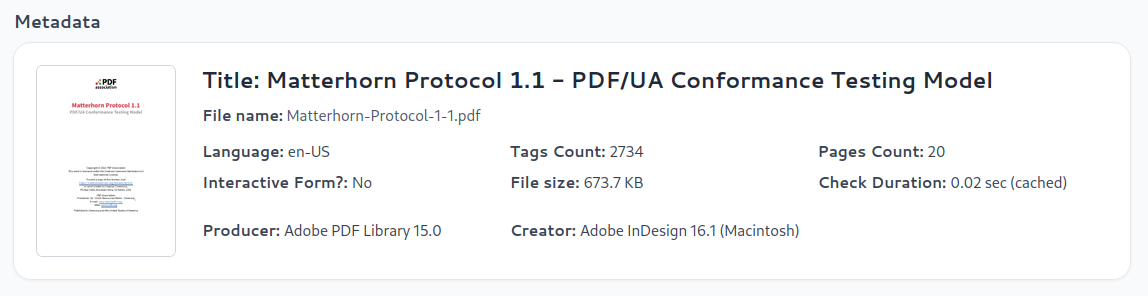
7. What is the "Metadata" section for ?
The metadata section provides information about the document such s
- URL/Filename
- Title
- Language
- Number of Tags (if structure tree present)
- Number of pages
- File size
- Form present?
- PDF Creator and Producer
- Check Duration
It also includes a thumbnail of the first page of the PDF document.
8. Does the checker provide any kind of usage analytics ?
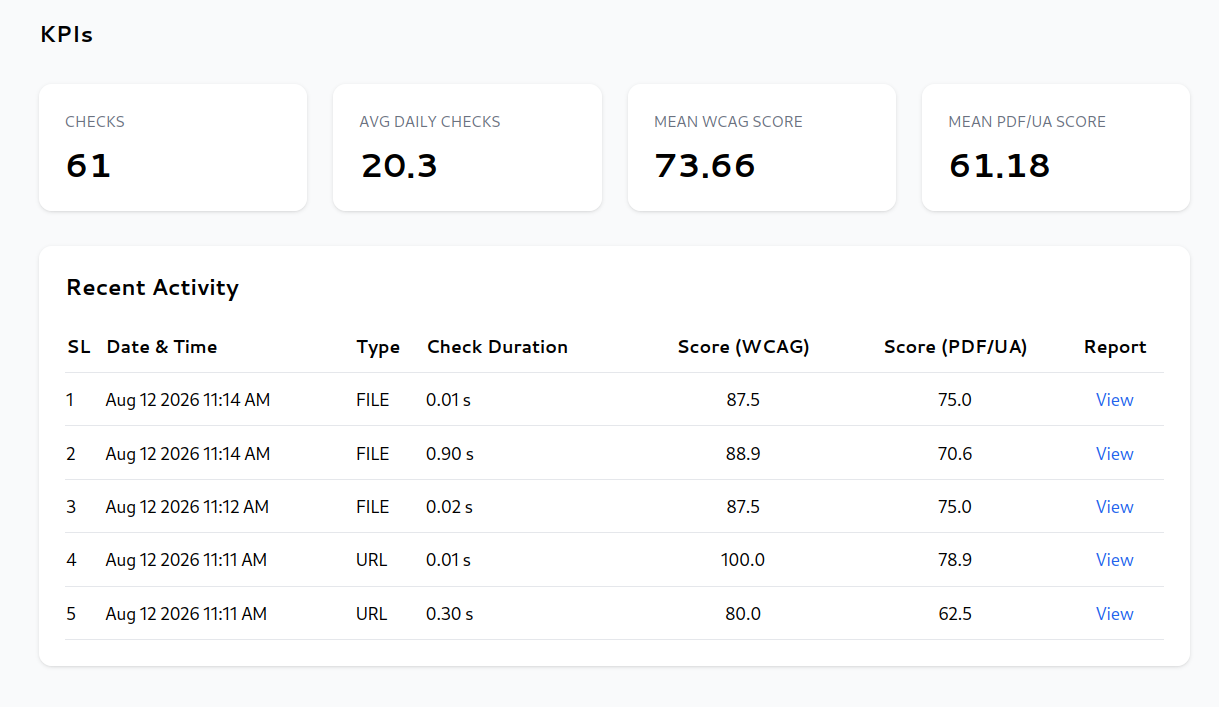
For logged-in users, you can see a summary of your usage per day for up to a year, from the on your dashboard.
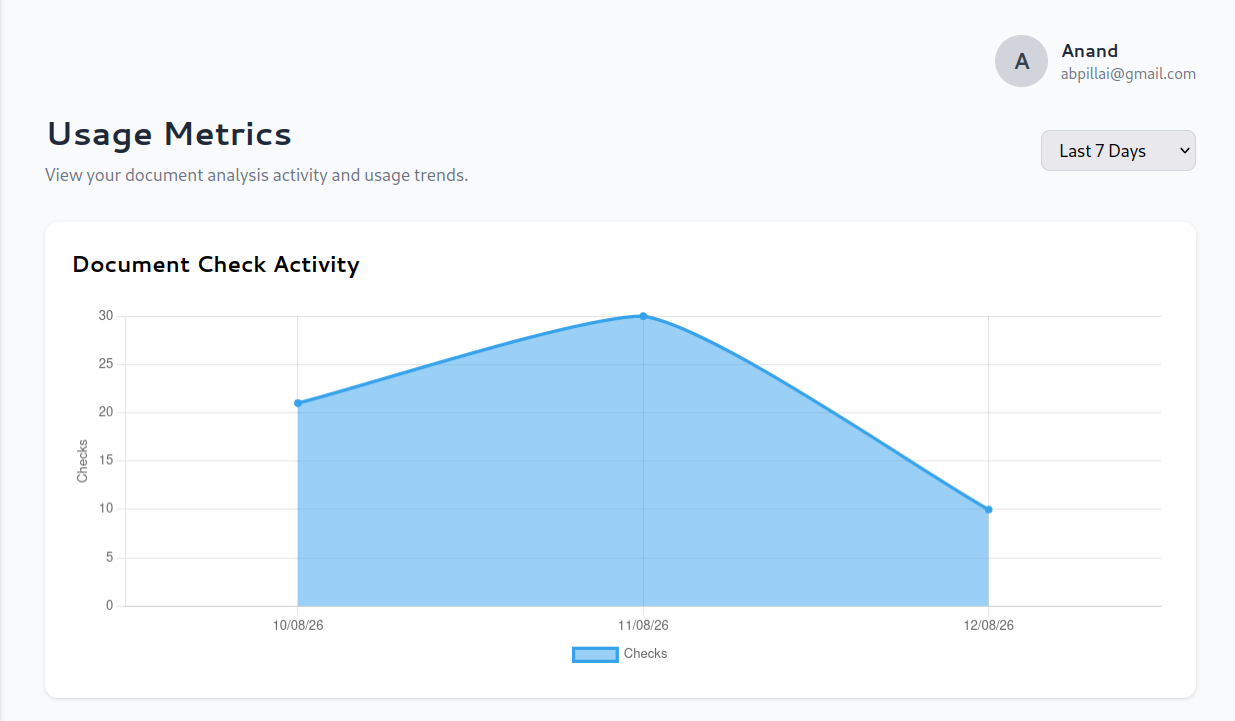
The page also shows some key performance indicators like the total number of checks, average number of daily checks and average document scores. It also shows the recent activity in terms of the last 5 checks with links to the results.
💾 V. Data and Sharing
1. Can I share the results of a PDF test with someone else ?
Yes, the first time a document or URL is submitted, the results are computed and saved to the database in the backend and you get a unique result URL like below.

You can copy and share this URL to anyone with who you want to share the result of the PDF check as it is unique to the PDF document/URL you checked. When the same URL or document is submitted again OR when you hit the result URL, the results are fetched from the database instead of recomputing it.
However note that the saved result (cache) is active only for 60 days — this is indicated as an "Expiry Date" on the permalink. After this date, accessing the link would result in a 404 error. The timezone used for this computation is always UTC.
2. I have updated my PDF and want to reassess it for accessibility. How do I do this ?
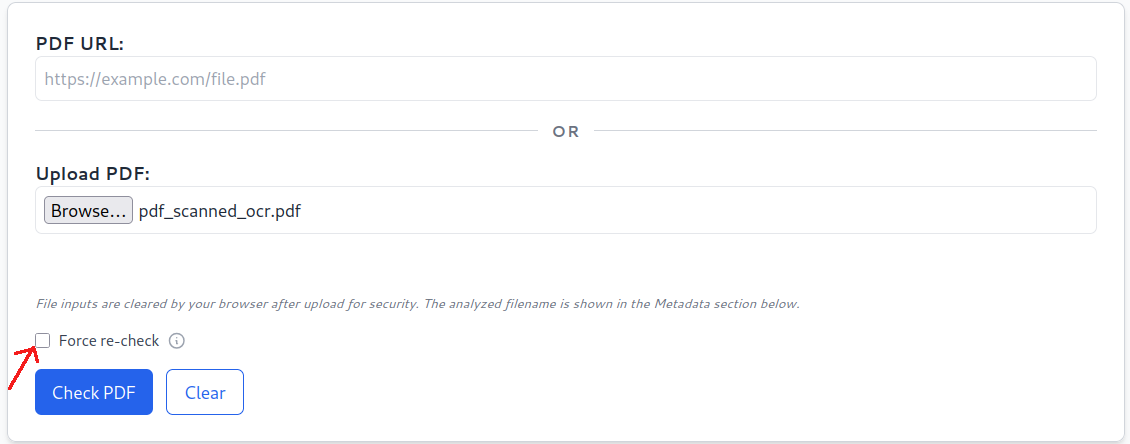
Before submitting the PDF, enable the checkbox that says "Force re-check". This forces the checker to refetch your PDF document from the original URL/file and thus any changes you made will be reflected in the accessibility results.
3. Is there a limit to the PDF file size that can be uploaded ?
Yes. The upload size is limited to 10 MB per file. This is to prevent huge I/O load on the server with multiple uploads. If you want to check a file that is larger than this size, put it on a publicly accessible URL and check it using its URL instead.
4. Are the uploaded files saved anywhere ?
No. When you upload a file to check, it becomes a temporary file on the server and once the check is done, they are automatically removed by the system. They are not permanently saved. Please check the
5. What is the use of the timezone field in the profile ?
The timezone information is used to correctly map the timestamps of usage to the user's timezone so that the timestamps in the usage metrics make sense to the user.
All timestamps in the system are saved in UTC and the user's timezone is used to do the mapping when rendering usage metrics. The field is optional and defaults to UTC, if not provided.7. How many tiers of usage does the checker support now?
- Anonymous User - This is when the user is anonymous and not logged in to the system. Usage is limited in this tier as you can check only up to 5 PDF files or URLs in a span of 24 hours.
- Signed-in User - Once you sign-in to the system, your usage limits go up and you can check up to 50 PDF documents in 24 hours. The limitation is only provided to avoid a single user from over-loading the server.
💬 VI. Feedback
1. I have some questions not answered here. How can I get in touch with you ?
Please use the page to get in touch with us. We'd be happy to hear from you.
2. How can I submit feedback linked to a specific test result ?
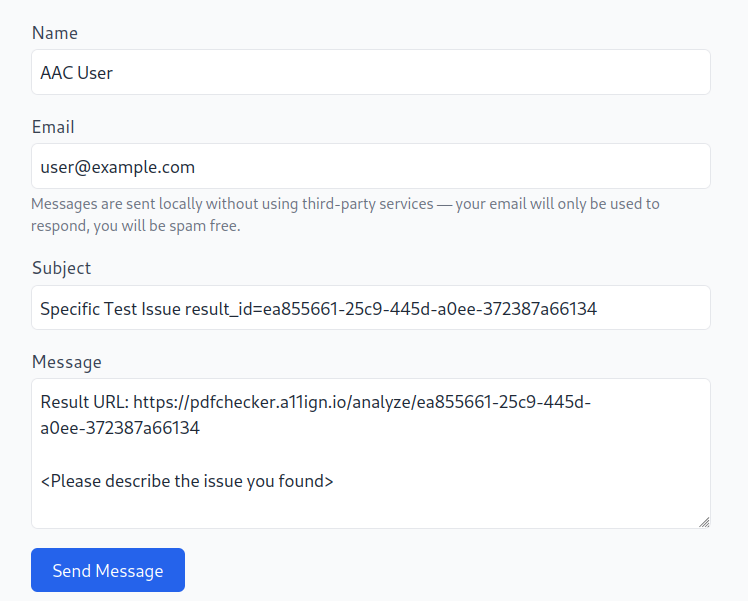
If you are a signed-in user, you can see an issue submit link at the end of the test result page as shown in the image below.
 If you click on it you will be taken to the contact page with fields pre-filled for submitting a test issue. Fill in the description and submit. Be as descriptive as possible.
 We will take a look at the issue and get back to you as soon as possible.